The gaming & tech site for Ticino and Italian-speaking Switzerland
The gaming & tech site for Ticino and Italian-speaking Switzerland
Logitech MX Keypad

✓ What we like
- 🟢 Very sharp OLED screens
- 🟢 Extremely flexible software
- 🟢 Excellent overall build quality
- 🟢 Multiple shortcut pages
What we don't like
- 🔴 Active Window Management
- 🔴 Not exactly a popular price
The landscape of productivity and streaming peripherals is constantly enriched with solutions designed to speed up the most complex workflows, winking at that audience of professionals who are not satisfied with classic keyboard shortcuts (and who perhaps look with a certain suspicion at the products of the most renowned competitors).

The arrival of this small control block aims precisely to fill that space between the traditional keyboard and the most demanding professional software, focusing everything on a grid of customizable mini displays and a construction that does not go unnoticed on the desk (especially if you spend your days between video timelines and photo editing suites).
Screens for me!
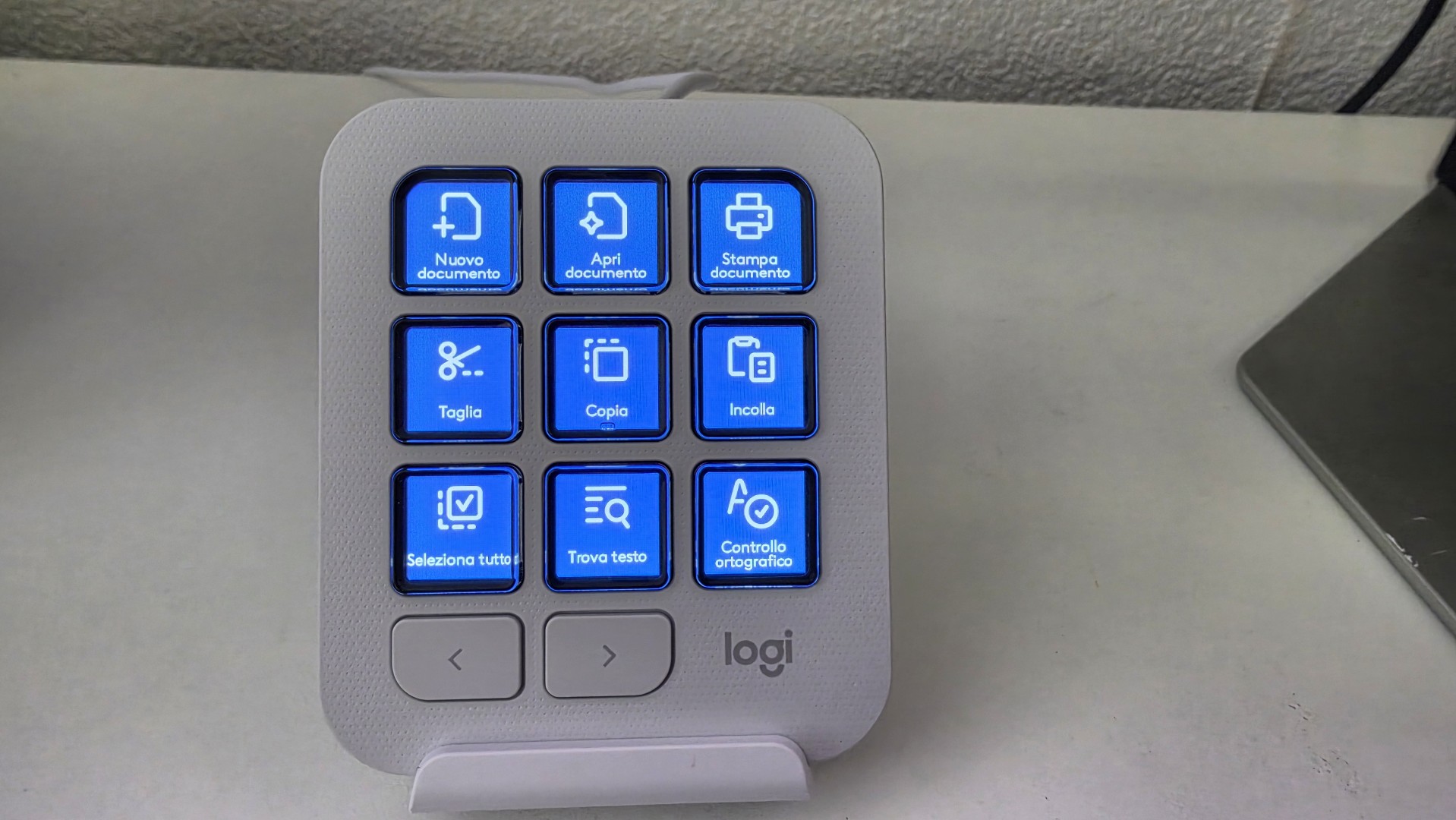
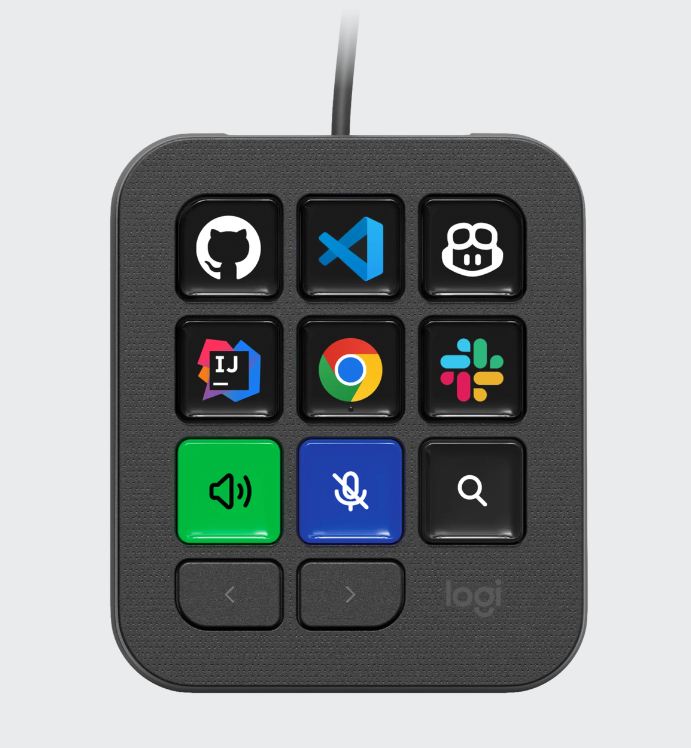
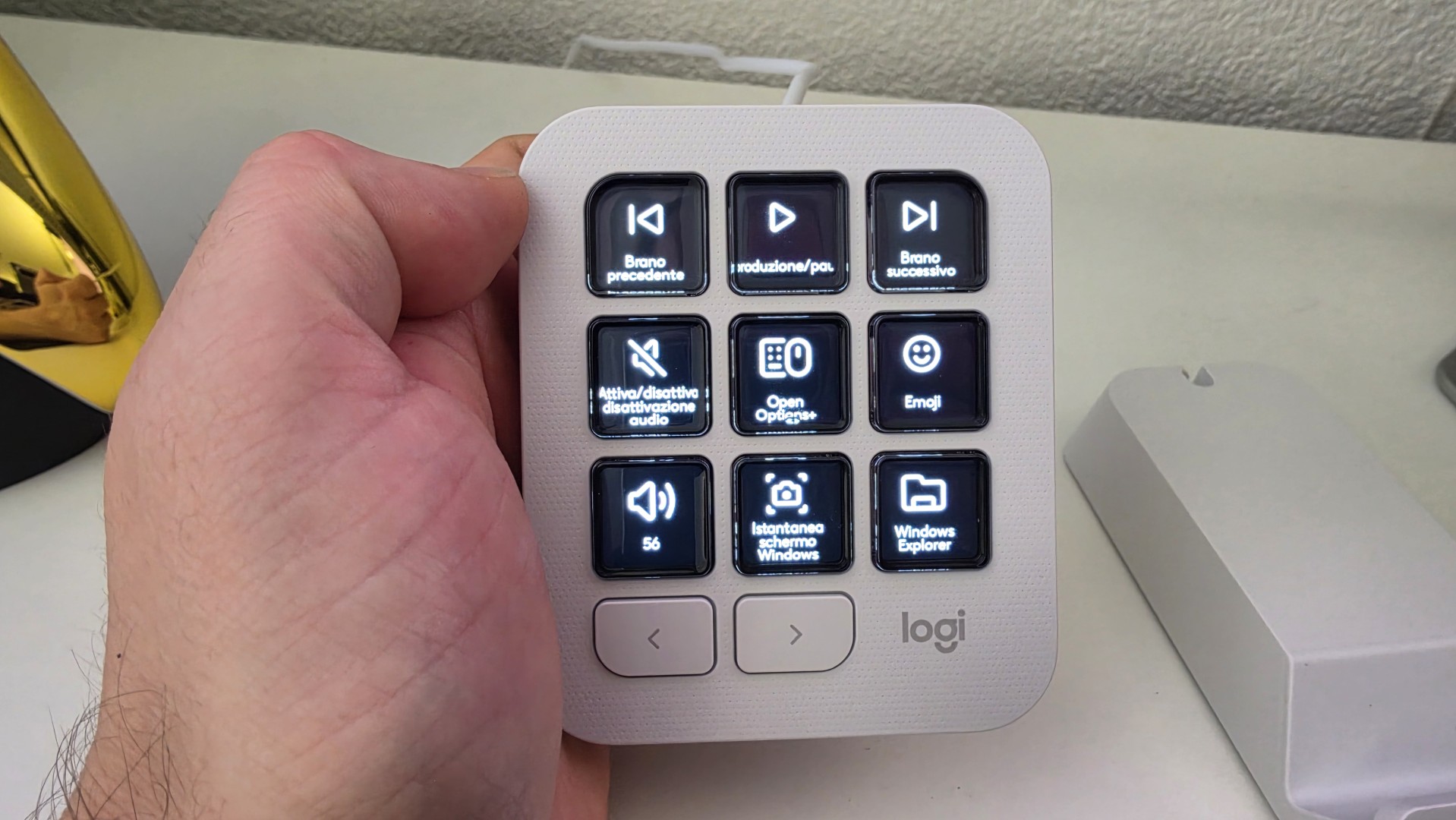
Analyzing the hardware itself, the device features a configuration as specific as it is intriguing. We find exactly six color OLED screens embedded in the chassis, flanked by just two physical buttons (a minimalist choice that shifts almost all the interaction burden onto the displays themselves). Connectivity is handled by a USB Type-C cable, while the chassis integrates premium plastic materials with a matte finish (which barely retains fingerprints, a real boon for those obsessed with visual order).
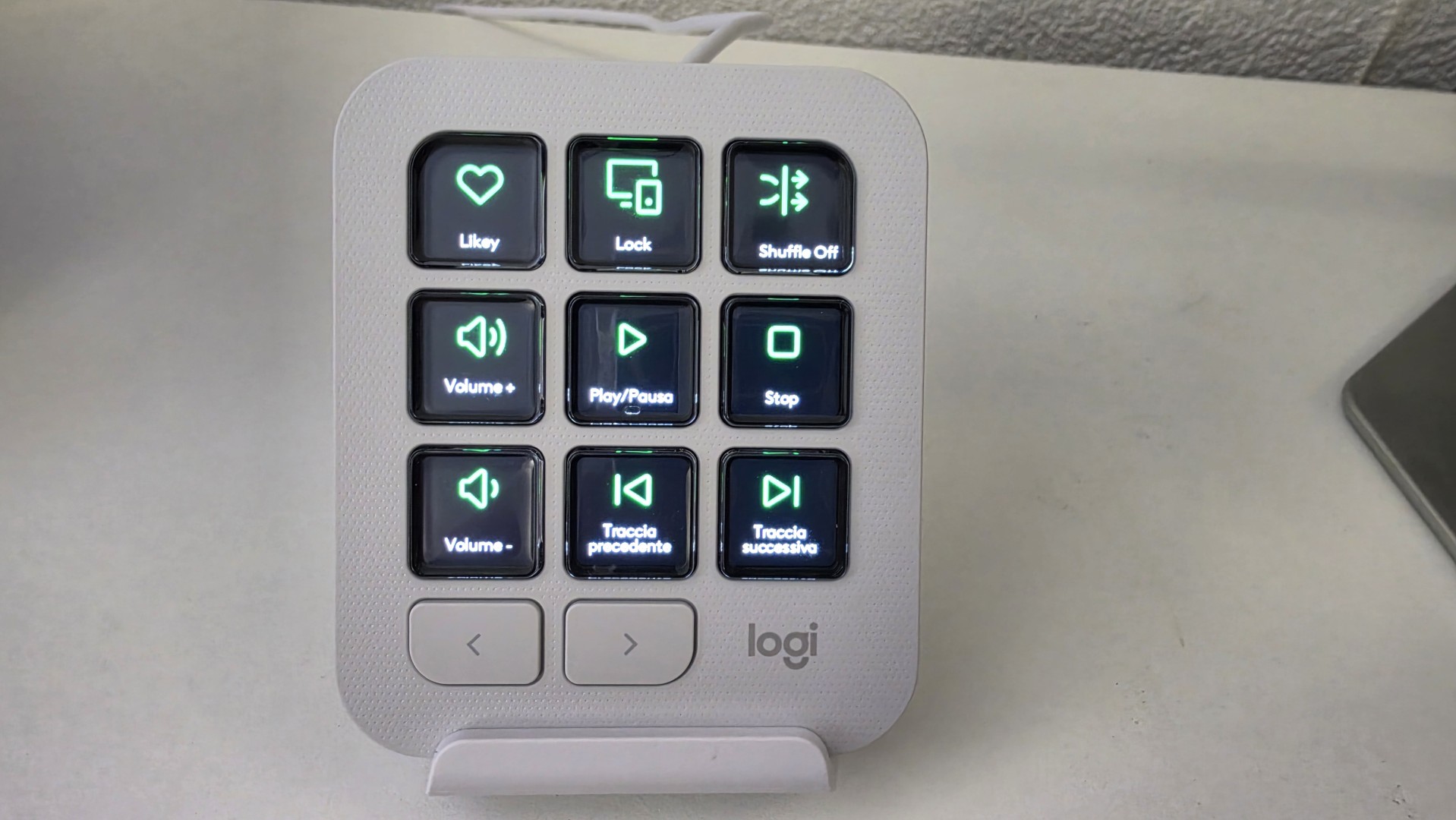
The displays offer adequate resolution to show crisp icons, status animations and application logos, with a well-calibrated brightness that doesn't blind even during late-night work sessions (and trust me, after eight hours in front of a 49-inch monitor, your eyes will thank you).
I only see what I want
The aesthetic faithfully follows the visual language to which we are accustomed from Logitech's line of advanced peripherals, with clean lines, a solid base that does not slip when pressed and a tilt specifically designed to ensure maximum visibility of the six OLEDs from any angle (even if the clean lines come at the cost of a slight tendency to collect dust in the gaps between the keys).
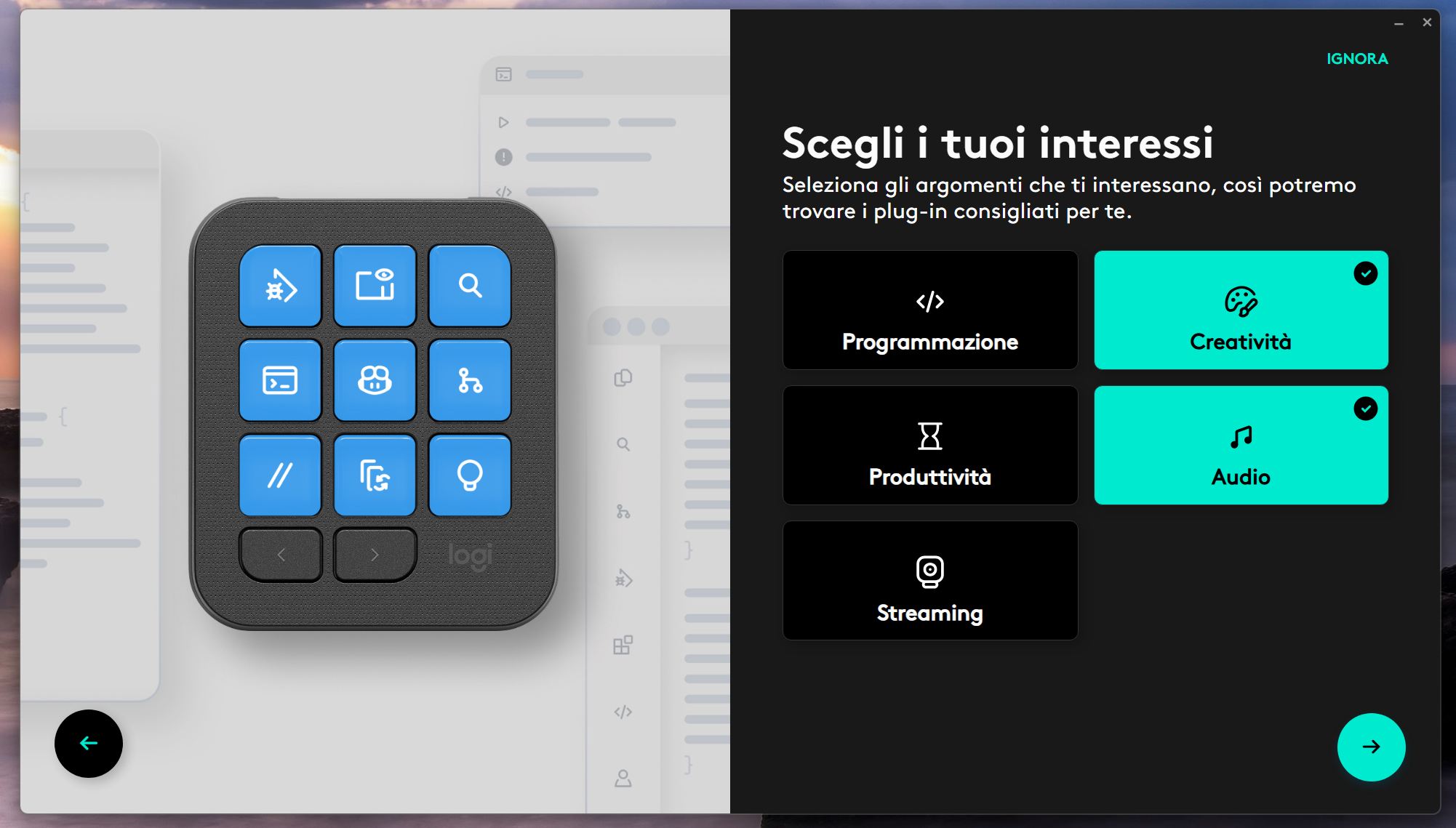
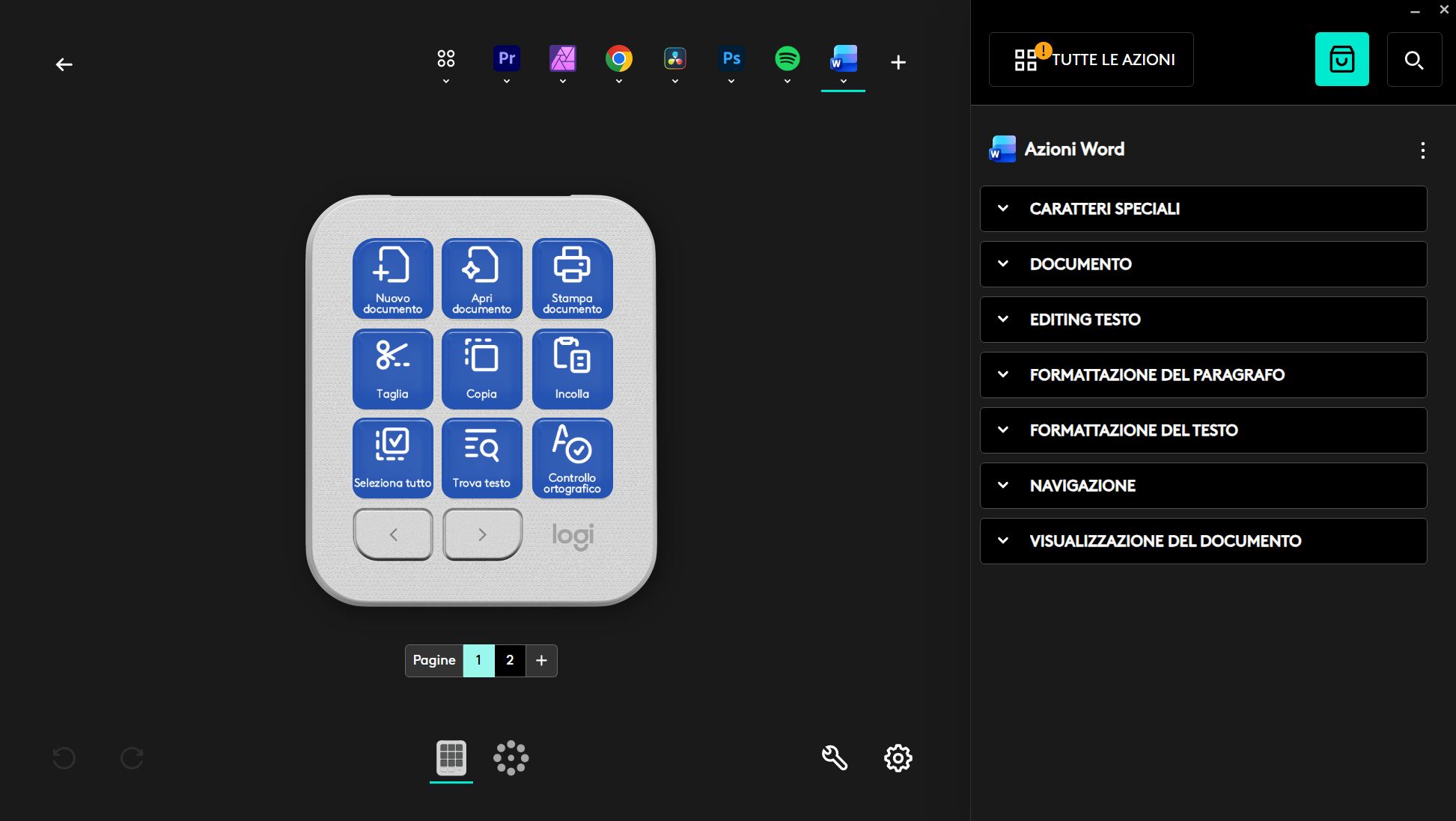
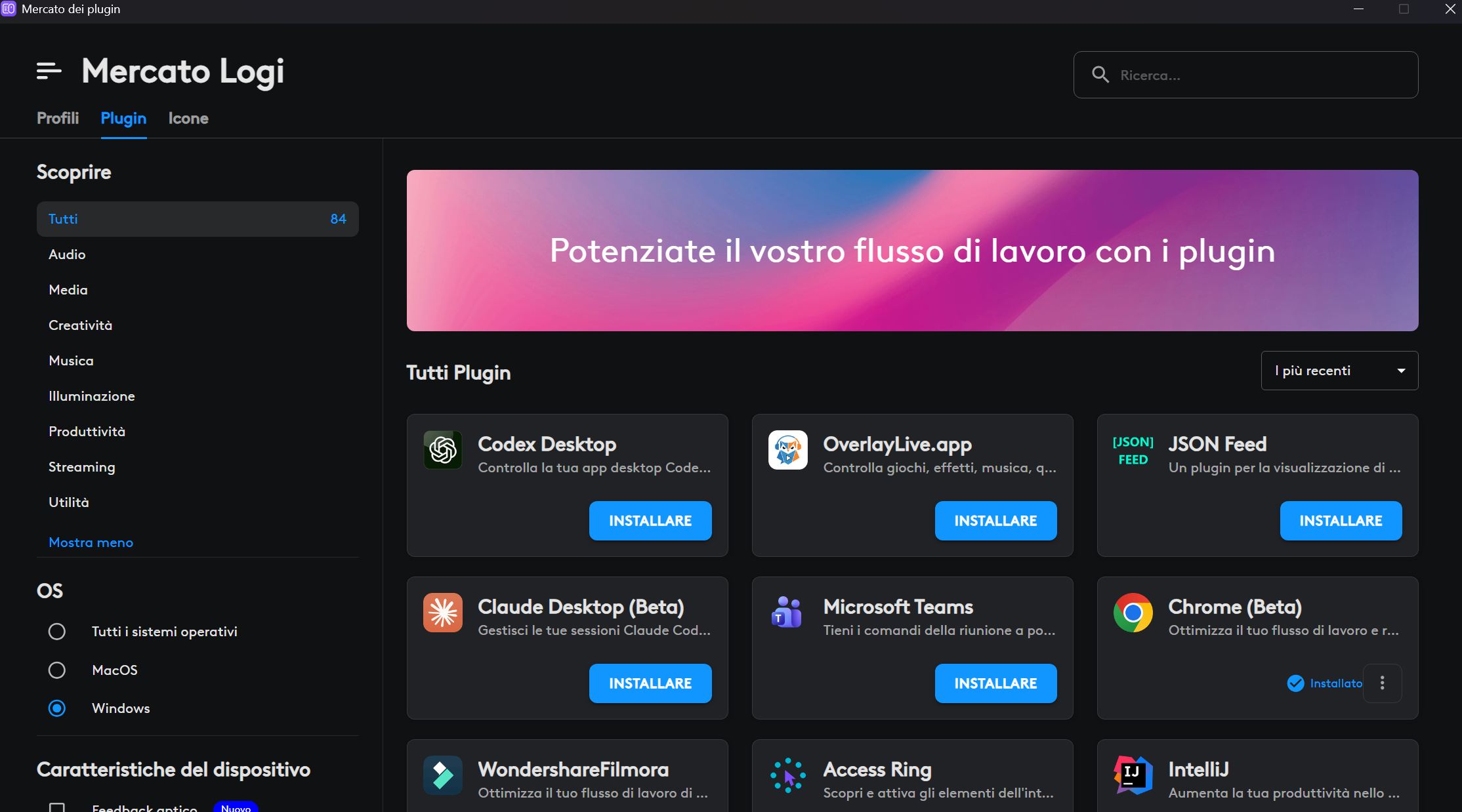
The real backbone of the user experience, however, is the management software, namely Logi Options+ (a now mature ecosystem, capable of instantly recognizing a multitude of programs active or installed on the operating system). Within the application, you can map a wealth of options (so many, ready to satisfy even the most demanding macro nerd), ranging from Photoshop to Affinity Photo 2, via DaVinci Resolve, Spotify, Word, Chrome, and dozens of other software that can be added directly with just a few clicks. You can even set up multiple pages of shortcuts for each individual program, exponentially multiplying the functions available at your fingertips (although the initial configuration requires a little patience and a lot of tinkering).
Daily use
In field testing, the small pad is extremely responsive, quickly becoming a real ally for speeding up repetitive tasks (especially when cutting video in DaVinci or managing layers in Photoshop). The screen buttons respond immediately, and the visual feedback provided by the OLEDs eliminates the need to memorize impossible key combinations. However, there is a structural limitation that is a bit of a turn-off during everyday use: unfortunately, it's not possible to lock a fixed screen on a specific application if that application is minimized or put in the background.
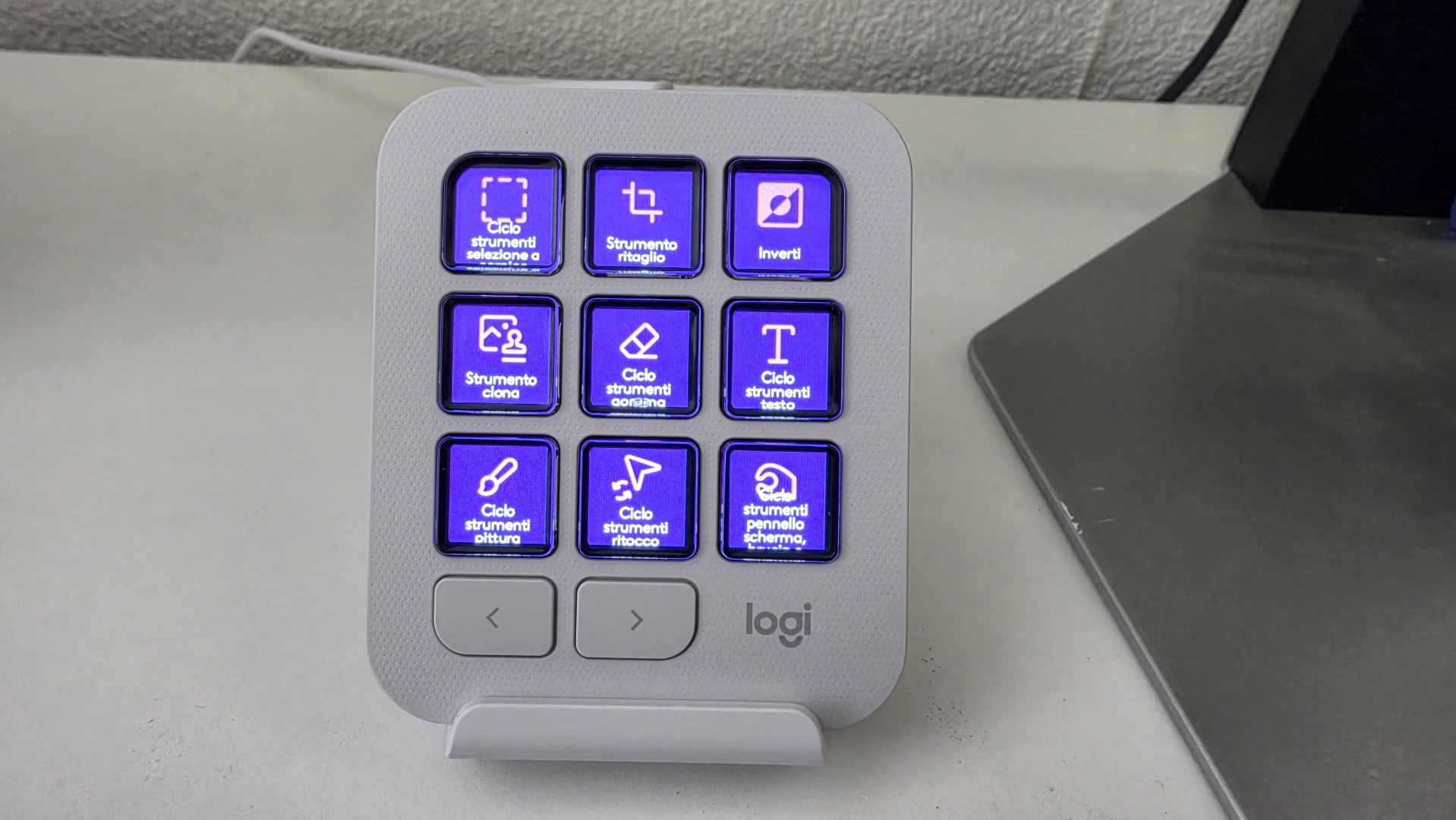
As a result, if we have Spotify minimized in the system tray, the controls instantly change to adapt to the currently active window, such as a Word document or a Chrome page (a dynamic behavior that can sometimes be confusing, forcing us to mentally reorganize the dashboard). Sure, we can disable it (the option is there even if it's not actually visible), but then switching profiles is inconvenient. In short, there really is no perfect squaring of the circle.
Despite this small flaw related to window management in advanced multitasking, the precision in the execution of macros never misses a beat and the stability of the connection never showed any uncertainties.
Conclusion
All things considered, this keypad turns out to be an extremely cute little object (its basic concepts are very reminiscent of a certain successful series of Elgato products). It's certainly not an essential component for the casual user, but depending on what we do in everyday life, it can become a real lifesaver, especially for professionals and creatives who want several convenient macros always at hand. A powerhouse of desktop technology that, despite requiring a considerable outlay (around 100 CHF), makes up for it thanks to its immense flexibility of use. Available in black or white!